Setting IDL PATH
After you have installed WaLSAtools, you need to add its path to your IDL_PATH. The IDL_PATH tells IDL where to find .pro files (IDL procedures and functions).
The easiest way to add WaLSAtools to your IDL path is by navigating to the WaLSAtools' idl directory in your terminal (under codes), starting IDL, and running the following command:
.run setup.pro
This will automatically configure your IDL path to include the WaLSAtools library.
If for any reason the above method doesn't work, you can manually add the WaLSAtools path to your IDL_PATH. The process for setting the IDL search path varies depending on your operating system and shell environment. Below are instructions for some common environments. For detailed information, please refer to IDL's support pages.
Using the Terminal 
You can define and add custom search paths to your IDL_PATH system environment variable in the terminal.
On Unix-like systems, such as Mac OS X and Linux, first determine your shell environment. Type the following command in your terminal:
echo $0
Common shells include bash (Bourne Again shell) and csh (C shell)/tcsh (TC shell). Instructions for customizing IDL_PATH in these shells are provided below.
Add the following lines to your .bashrc file (located in your home directory) or to the script where you set your IDL_PATH variable:
export IDL_DIR=PATH-TO-IDL-DIRECTORY
export IDL_PATH=+${IDL_DIR}/lib:+PATH-TO-THE-DIRECTORY/WaLSAtools
Replace PATH-TO-IDL-DIRECTORY and PATH-TO-THE-DIRECTORY with the actual paths to your IDL installation and the WaLSAtools directory, respectively. You can add multiple paths to IDL_PATH by separating them with :+.
After saving the changes, run the following command in your terminal to apply them:
source ~/.bashrc
Add the following lines to your .cshrc or .tcshrc file:
setenv IDL_DIR PATH-TO-IDL-DIRECTORY
setenv IDL_PATH +$IDL_DIR/lib:+PATH-TO-THE-DIRECTORY/WaLSAtools
Replace PATH-TO-IDL-DIRECTORY and PATH-TO-THE-DIRECTORY with the actual paths. You can add multiple paths by separating them with :+.
After saving the changes, run the following command in your terminal:
source ~/.cshrc # or source ~/.tcshrc
- Open the Environment Variables dialog:
Start > Control Panel > System and Security > System > Advanced system settings > Advanced > Environment Variables (On Windows 7, select Start > Control Panel > System and Security > System > Advanced system settings > Environment Variables)
-
Set the
IDL_PATHvariable. If it doesn't exist, create a new system or user variable namedIDL_PATH. -
Define the IDL packages/libraries in your path:
+C:\Program Files\PATH-TO-IDL-DIRECTORY\lib;C:\PATH-TO-THE-DIRECTORY\WaLSAtools
Replace PATH-TO-IDL-DIRECTORY and PATH-TO-THE-DIRECTORY with the actual paths. Separate multiple paths with semicolons (;), without adding any spaces.
Using IDL Workbench 
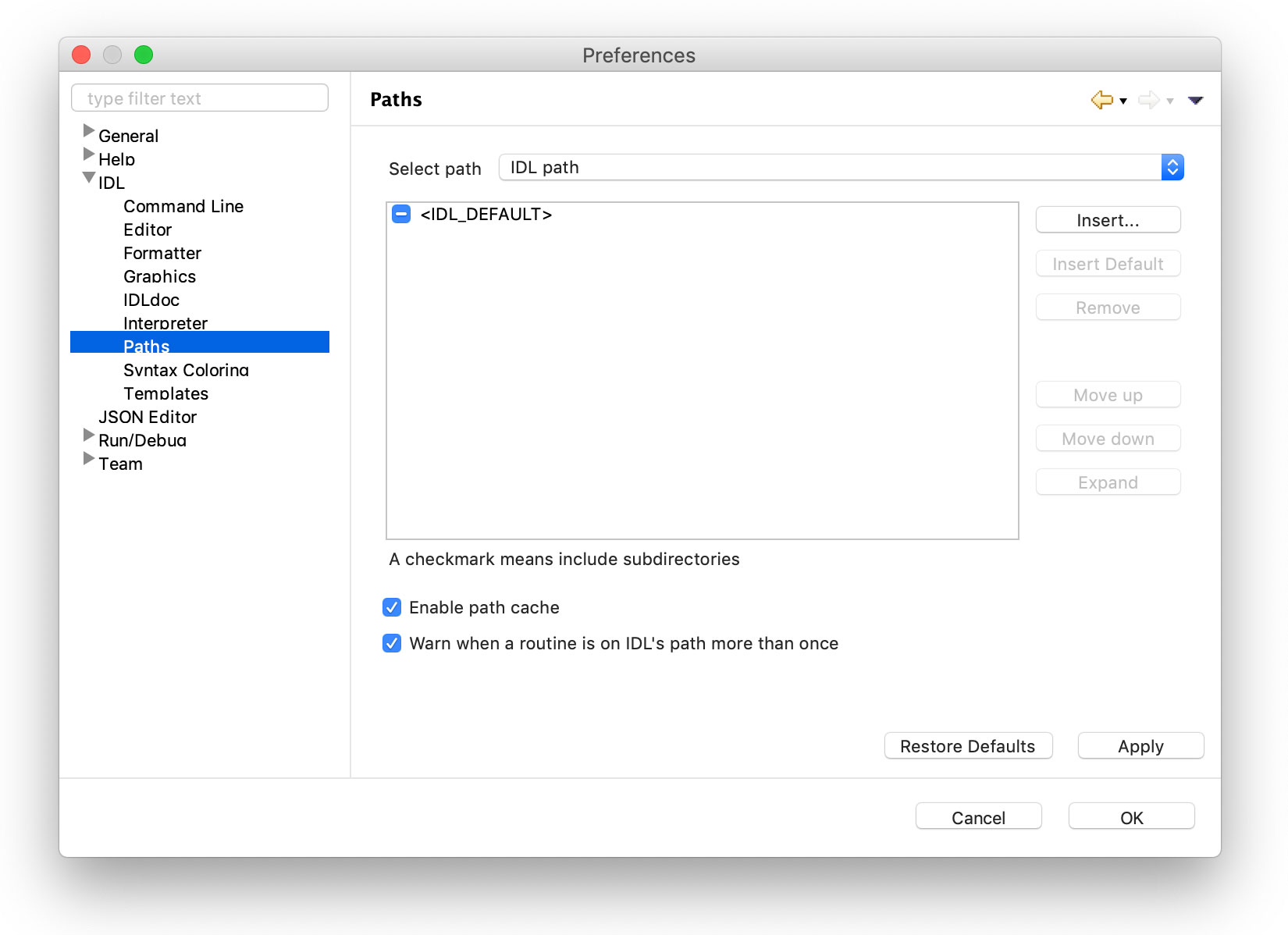
You can also customize the IDL_PATH through the IDL Workbench (idlde) Preferences dialog.
-
Open the Preferences dialog.
-
: IDL > Preferences
-
and : Window > Preferences
-
-
Expand and select
IDL > Pathsin the left pane. -
Select "IDL path" from the dropdown menu on the right.
-
Insert your additional IDL program search paths.
-
If
is not already included, press the "Insert Default" button. -
Click "Apply" and then "OK" to save your changes.
Verifying the path
To test if the path is set correctly, start IDL and run:
WaLSAtools, /version
The package is successfully installed if the output shows the WaLSAtools version and a brief overview of its functionalities.